
How to Recover Deleted Folders on a Mac?
In most cases, users accidentally delete folders with their files, which leads to losing important files. But sometimes, the system folder can get removed by mistake as well. The type of folder that was removed may influence the work of the system, your user account, or some specific app. Luckily, there are multiple ways to recover deleted folders on Mac.
We have listed the steps depending on when the folder was removed. So you can use the first steps immediately after removal and use the steps provided further no matter how much time passed.
I. Use the “Undo” Method to Recover Deleted Folders on Your Mac
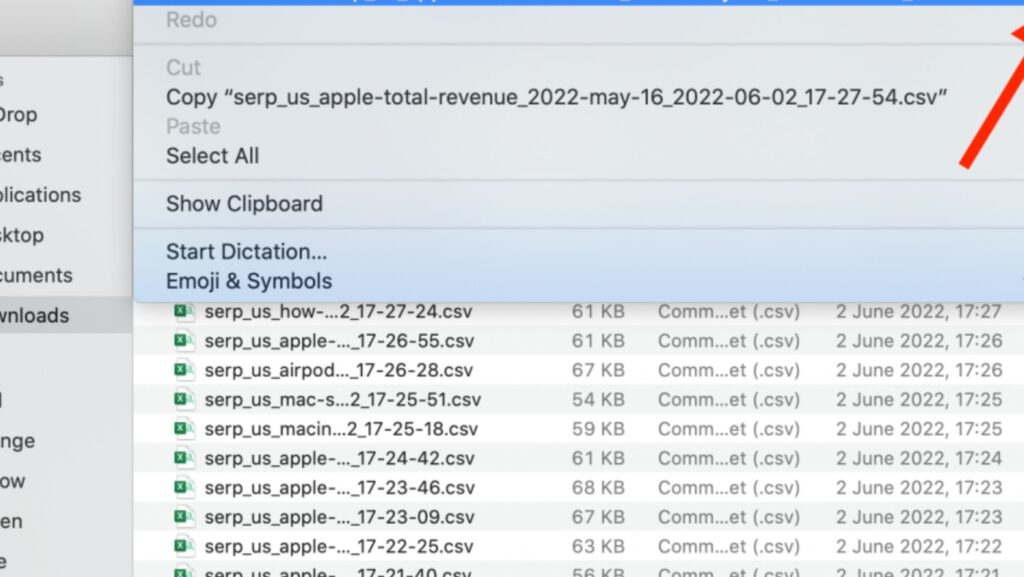
You can revert many actions on macOS with a simple shortcut combination. By “undo,” you can remove the last action done on the computer. So this method works only if you use it immediately after removal.
To use “undo” to recover deleted folders:
- Use the Command + Z shortcut combination on your keyboard.
- Click on Edit at the top left of the screen and choose Undo.
Use the Undo action on Mac
II. Check the Trash to Recover Deleted Folders on Your Mac
Usually, when you delete any file, it gets moved to the Trash. This is a way for macOS to help users revert any mistakenly removed data. Files and folders stay up in Trash for 30 days, and after that, they get removed automatically to free up disk space. Users can also Empty Trash completely anytime. So this method works best with recently deleted items.
Follow these steps to recover deleted folders from Trash:

- Open Trash Bin on the bottom right of your screen on the Dock.
- Look through the list and find the folder you want to restore.
- Control-click (right-click) on the folder and choose Put Back from the drop-down menu.
Put Back option on macOS
This method also works if you want to recover deleted Mac files located in that folder. In this case, simply open the folder in Trash, click on the file you want to recover, and use Put Back the same way as you would with a folder.
After this action, files, and folders disappear from Trash Bin, and you can find and open them from their original location.
III. Use Terminal to Recover Deleted Folders on Your Mac
You can use Terminal to recover deleted folders that are located in Trash. The terminal is a macOS command prompt that allows you to control your machine and perform any kind of action in one window from a command line. You can use this method if you know the folder’s name and if you are sure it is located in Trash. This is especially helpful if you have tons of files in your Trash Bin and don’t want to waste time on searches.
To use Terminal for folder recovery:
- Open Terminal from Applications > Utilities.
- Enter cd .Trash in Terminal window to access the Trash Bin.
- Type ls -al ~/.Trash to see the content of Trash.
- Enter mv folder ../ to recover the deleted folder. (where “folder” is the name of the folder you want to restore).
- Quit Terminal once you recover the folder.

Mac Terminal > type in ls -al ~/.Trash
IV. Use Time Machine to Recover a Deleted Folder on Your Mac
It is recommended to regularly back up your data to prevent any data loss situations. So, if you have created a Time Machine backup before, you can use it to recover deleted files and folders. Time Machine is a built-in backup tool that automatically back up your whole internal drive and any changes made on it. The backup files are stored on an external hard drive so they can be easily accessed anytime and anywhere. This method can be used even if it is too late to use ‘undo’ and you can’t find a folder in the Trash Bin.
Tip: To easily access Time Machine, you can add its icon to the menu bar. To do this, open System Preferences > Time Machine and click on the checkbox “Show Time Machine in menu bar” at the bottom of the window.

To recover deleted folders on your Mac using Time Machine:
- Connect the external hard drive with Time Machine backup to Mac.
- Open Time Machine by clicking on the dedicated icon on the menu bar and choosing “Enter Time Machine”.
Enter Time Machine from the menu bar on macOS
- Locate the deleted folder inside Time Machine. Timeline and search can help with this.
- Select the folder you want to recover and click on Restore at the bottom.
Restore files with Time Machine on macOS

Once Time Machine recovers deleted folder, it will be put back into the original location.
V. Use the Stellar Data Recovery App to Recover Deleted Folders on Your Mac
If you scrolled all the way down to these steps, the folder is not in the Trash, and you didn’t back up your Mac ahead of time. The good news is that you can still recover deleted folders with the right tool. This is possible because the system remembers and stores the files even after removal until they are overwritten with some other data. Stellar Data Recovery for Mac software recovers deleted files and folders on Mac even when all other methods fail.
To recover deleted folders with Stellar Data Recovery:

1. Download and install Stellar Data Recovery from the official website.
2. Once the app is installed, open it from the Applications folder.
3. Click on Next on the main screen (toggle near Recover Everything should be on).
Stellar Data Recovery > Select What To Recover
4. Select Macintosh HD and click on Scan.
Stellar Data Recovery > Recover From

5. In the Preview window, put a checkmark near the folders you want to recover.
Stellar Data Recovery > Preview
6. Activate the software and choose Recover at the bottom.

VI. Use iCloud or Google Drive to Recover a Deleted Folder on Your Mac
If you’re familiar with iCloud backups or constantly use Google Drive workwise, this option is for you. Visit iCloud or Google Drive and look for the folder that has been deleted.
In Conclusion
Losing a file or a folder may feel like irreversible damage. But with the right actions and tools, it is possible to recover deleted folders on your Mac and get all the data back. Even a simple “undo” can be helpful if used right after removal. In all other cases, you can retrieve items from Trash manually or by using Terminal, restore folders from Time Machine or to find recently deleted files on Mac use a professional data recovery software like Stellar Data Recovery.
About Author

 Best Turnkey iGaming Solutions for Operators
  Digital Content Built Around Poker Games
  Why Digital Creators and Content Strategists Choose to Rent Car Dubai for Seamless Content Production